From time to time, you may need to block certain items (parcels) from being paid through your EscrowCloud site. Common reasons for blocking items include:
- Repetitive insufficient funds (NSF) from a customer
- Tax sale status
- Bankruptcy
- Confidential Account
- Other legal or administrative holds
Blocking an item ensures it will not be available for payment through EscrowCloud.
Hiding owner information ensures these details remain confidential and hidden from your site.
How to Block Items
Log in to EscrowCloud.
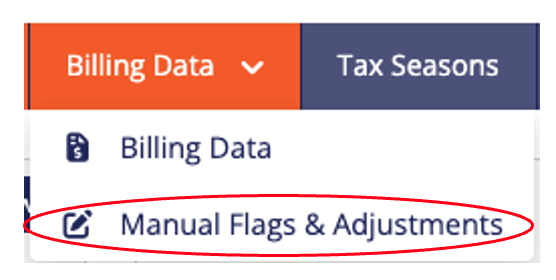
From the Billing Data menu, select "Manual Flags & Adjustments".
Note: This behavior only applies to accounts that have both MuniciPay and EscrowCloud. Item overrides are managed within the EscrowCloud billing data, so when an account has both products selecting Manual Flags & Adjustments from the MuniciPay platform will automatically transition you into the EscrowCloud platform. You will see this reflected at the top of the screen.
Click on "+ Add Override(s)".

A pop-up window will appear. Under Item Number(s), enter the item numbers (parcels) you wish to block. Enter one item number per line. You can also copy and paste a list.
In the Reason field, enter the reason for blocking the items. (This reason is for internal use only and will not be visible to your payers)
If you would like to remove all existing blocks and replace them with the current list, click the radio button labeled Replace Existing Blocks.
Select any radio buttons to mark the items as Confidential or Foreclosure.
If you are blocking the item, select appropriate radio button(s) to Block on MuniciPay or Block on EscrowCloud. Blocking an item ensures it will not be available for payment through your site.
When you're finished, click the Override button to apply the changes.
Note: If you are uploading a list or entering multiple item numbers that require different actions or different block reasons, each action must be handled separately. Please upload/enter these items separately based on the action or reason being applied.
Was this article helpful?
That’s Great!
Thank you for your feedback
Sorry! We couldn't be helpful
Thank you for your feedback
Feedback sent
We appreciate your effort and will try to fix the article