Adding a Payer
Log into your EscrowCloud account. On the top menu, select the Payers tab. From the drop-down, click Payers to open the full list of available payers.
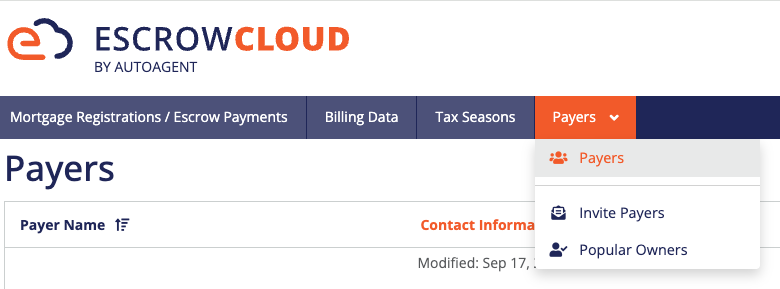
You can scroll through the list, but the fastest method is to use the Filter Results panel on the right side of the page.
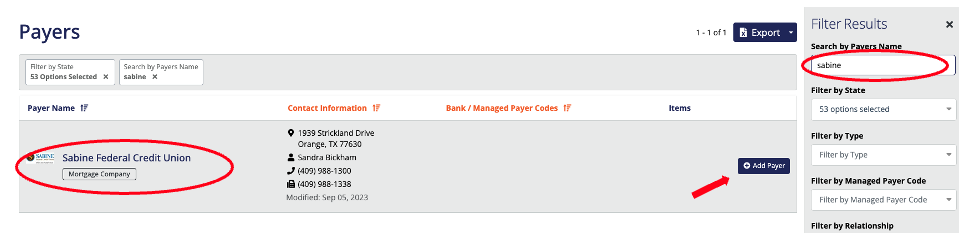
- Under Search by Payer Name, type the payer’s name.
- Additional filters are also available if you need to narrow results further.
- Once you type the name, the matching payer will populate at the top of your screen.
- On the right side of their details, click the blue “Add Payer” button. This action immediately:
- Adds the payer to your Payer Network.
- Sends a notification to the payer letting them know you have added them.
Tip:
Although the system sends a notification, we recommend reaching out to the payer directly as well. Personal outreach helps ensure the payer sees the update and opens the door for clear communication about using EscrowCloud.
Removing a Payer (if needed)
If at any point you need to remove a payer from your network:
Return to the Payers tab. Locate the payer using the same search/filter tools. On the right side of the payer’s details, click the red “Restrict Access” button.
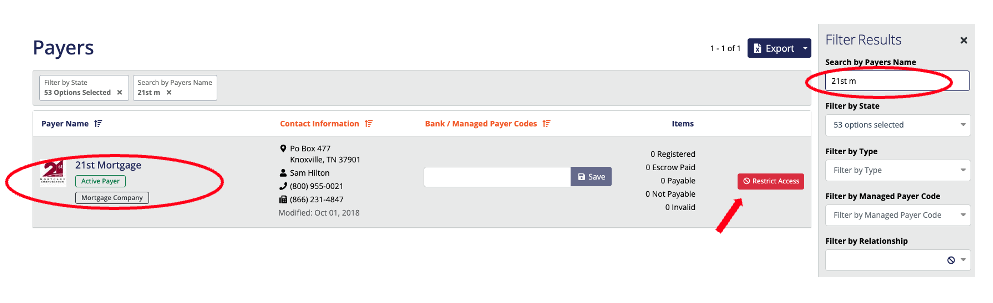
Restricting access removes your tax office from the payer’s overview page within their EscrowCloud account.
Was this article helpful?
That’s Great!
Thank you for your feedback
Sorry! We couldn't be helpful
Thank you for your feedback
Feedback sent
We appreciate your effort and will try to fix the article